Creating notification templates
Templates define the text and format of a notification. Most templates offer an HTML or plain text format option and offer base text that you can customize.
The Templates tab on the Notifications page (Administration > Notification Management) lists predefined templates and enables you to create additional templates.
You can define the following attributes for each template:
-
Name — The name by which the template will be referenced.
-
Type – The action or event for which the template is used. For example, you can create templates to notify users about Slack messages or to send email notifications about alerts or jobs completed.
-
Subject — A brief description of the template’s function.
-
Format — The format of the template for the application, connector, or function. Options include Email, Slack (format and channel), ServiceNow, SMS, Proxy, Reporting, and configuration changes.
-
Updated On — The date and time on which the template was created or last updated.
-
Updated User – The email address of the user to which the template applies.
-
Actions – Options for modifying or deleting a template.
To create a new notification template:
-
Go to Administration > Notification Management.
-
Click the Templates tab and click New.
-
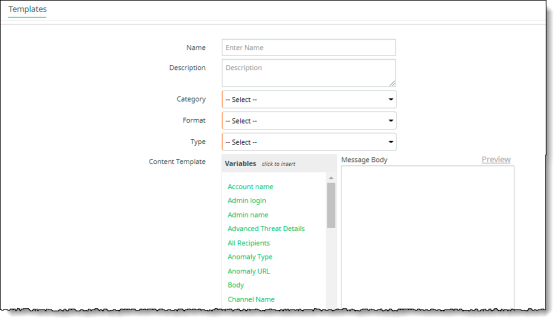
Enter a Name (required) and a Description (optional).
-
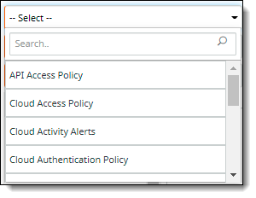
Select a template Category. This is the type of action, event, or policy for which the template will be used.
-
Select a Format for the template. The formats available depend on the category you chose in the previous step. In this example, the formats listed are for the Cloud Access Policy category.
-
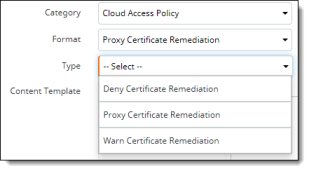
Select a notification Type. The options listed depend on the format you chose in the previous step.
-
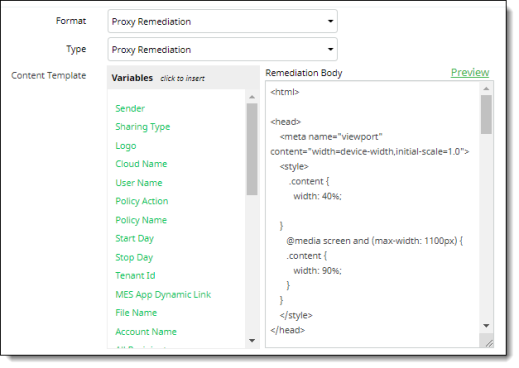
Enter the content for the template in the text area at the right. Scroll down to the areas where you want to enter content.
-
Select any variables you want to use from the list at the left. Place the cursor at the point where the variable should be inserted and click the variable name. The list of available variables will vary depending on the format and type of template you are creating.
-
If you are creating an email template, select HTML or Text as the delivery format, and enter a subject.
-
Click Preview at the upper right to see how your template content will be displayed.

-
Save the template.